> ## Documentation Index
> Fetch the complete documentation index at: https://docs.gcore.com/llms.txt
> Use this file to discover all available pages before exploring further.
# Configure CDN integration
When using both Gcore Managed DNS and Gcore CDN, A and AAAA records can be configured to resolve directly to CDN addresses. CDN integration eliminates the need for a CNAME record and the associated additional DNS lookup on the end-user side — Gcore DNS resolves the record to the optimal CDN address automatically.
In the [Gcore Customer Portal](https://portal.gcore.com), navigate to **DNS**.
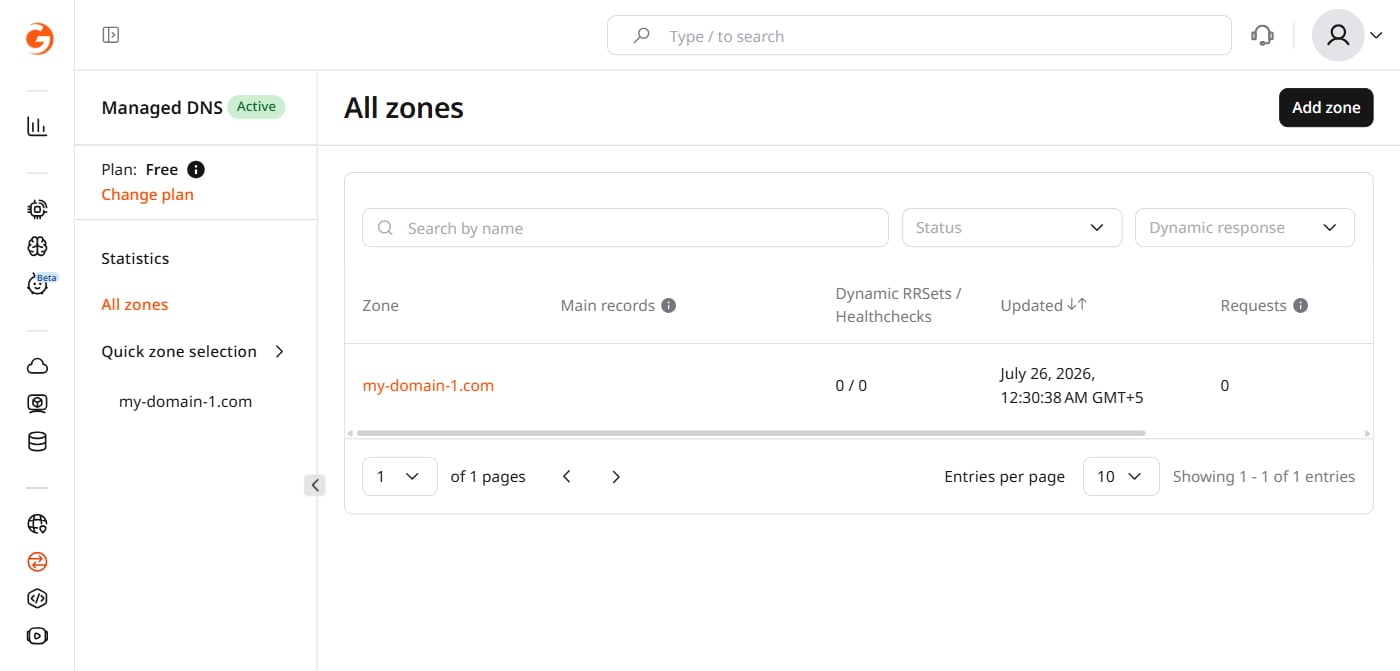 Click the domain name of the DNS zone to configure.
CDN integration is available only for **A** and **AAAA** record types.
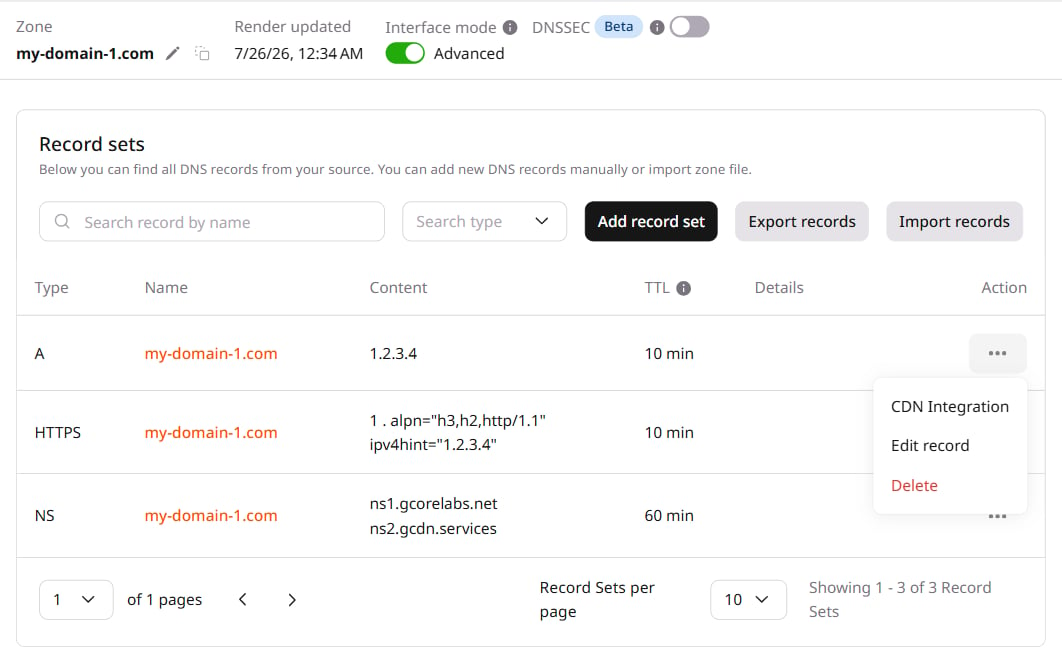
Click the three-dot icon next to the A or AAAA record and select **CDN Integration**.
Click the domain name of the DNS zone to configure.
CDN integration is available only for **A** and **AAAA** record types.
Click the three-dot icon next to the A or AAAA record and select **CDN Integration**.
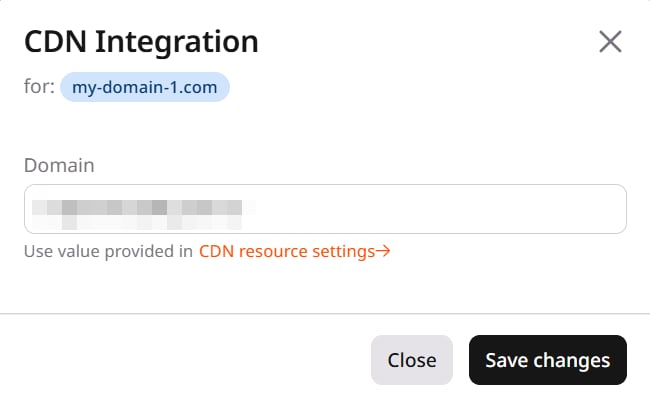
 In the **CDN Integration** popup, the **Domain** field is pre-filled with the endpoint from CDN resource settings. Click **Save changes**.
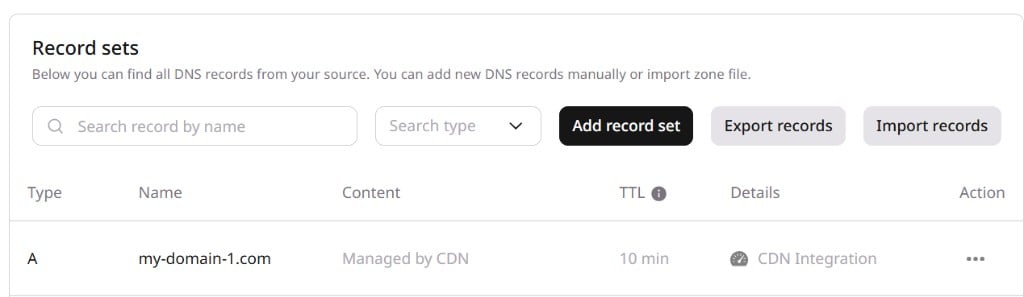
 The DNS zone is now integrated with Gcore CDN. The record content changes to **Managed by CDN** and the details column shows **CDN Integration**.