> ## Documentation Index
> Fetch the complete documentation index at: https://docs.gcore.com/llms.txt
> Use this file to discover all available pages before exploring further.
# Dedicated server statistics
The [Gcore Hosting Portal](https://hosting.gcore.com/billmgr) provides two traffic statistics views for dedicated servers: daily incoming and outgoing traffic data, and monthly consumption against the included quota.
## Consumption by days
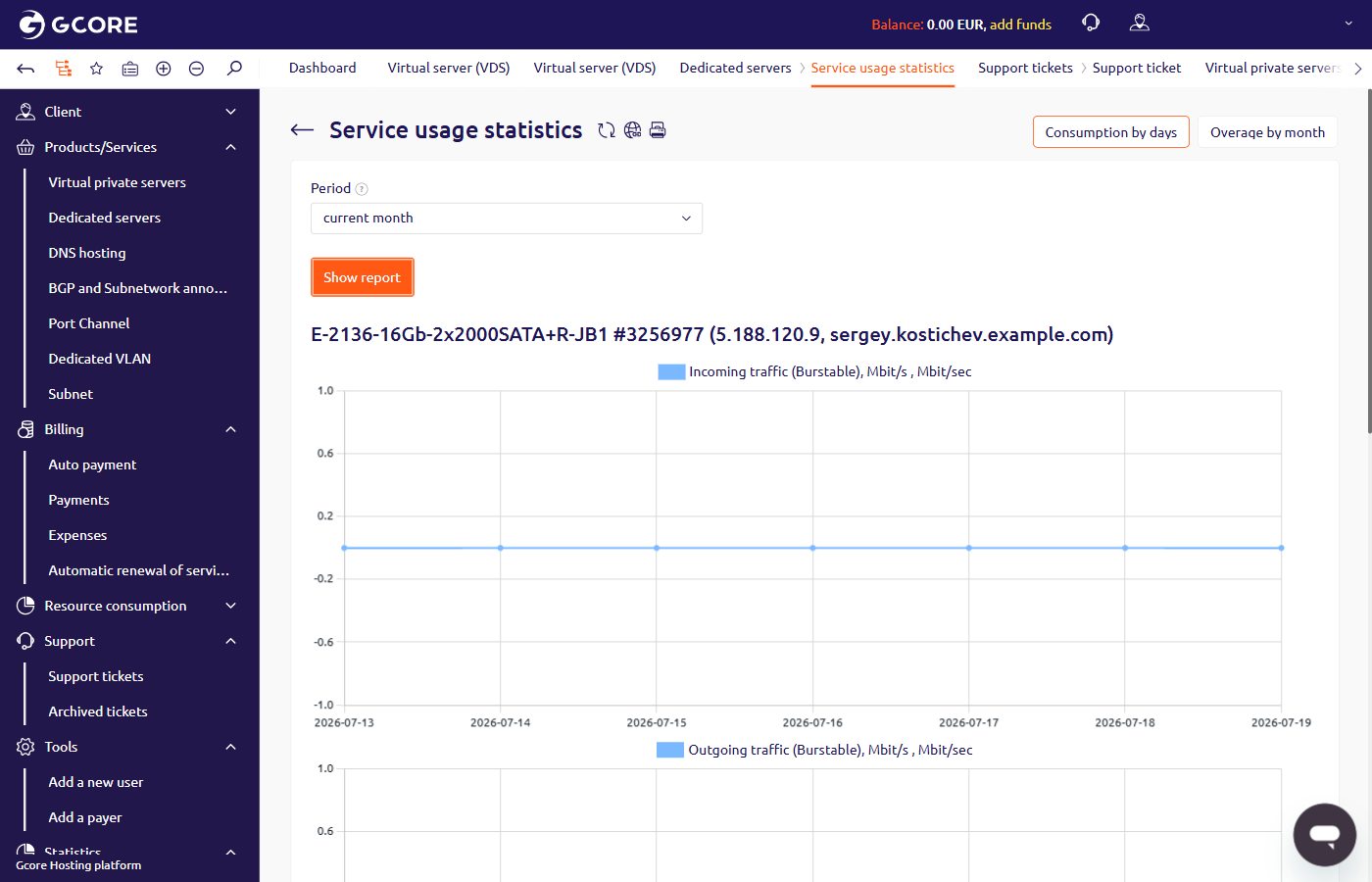
To view daily incoming and outgoing traffic:
1. In the Hosting Portal, navigate to **Dedicated servers**.
2. Select the server and click **Statistics** in the toolbar.
3. On the **Service usage statistics** page, select a period and click **Show report**.
 ## Overage by month
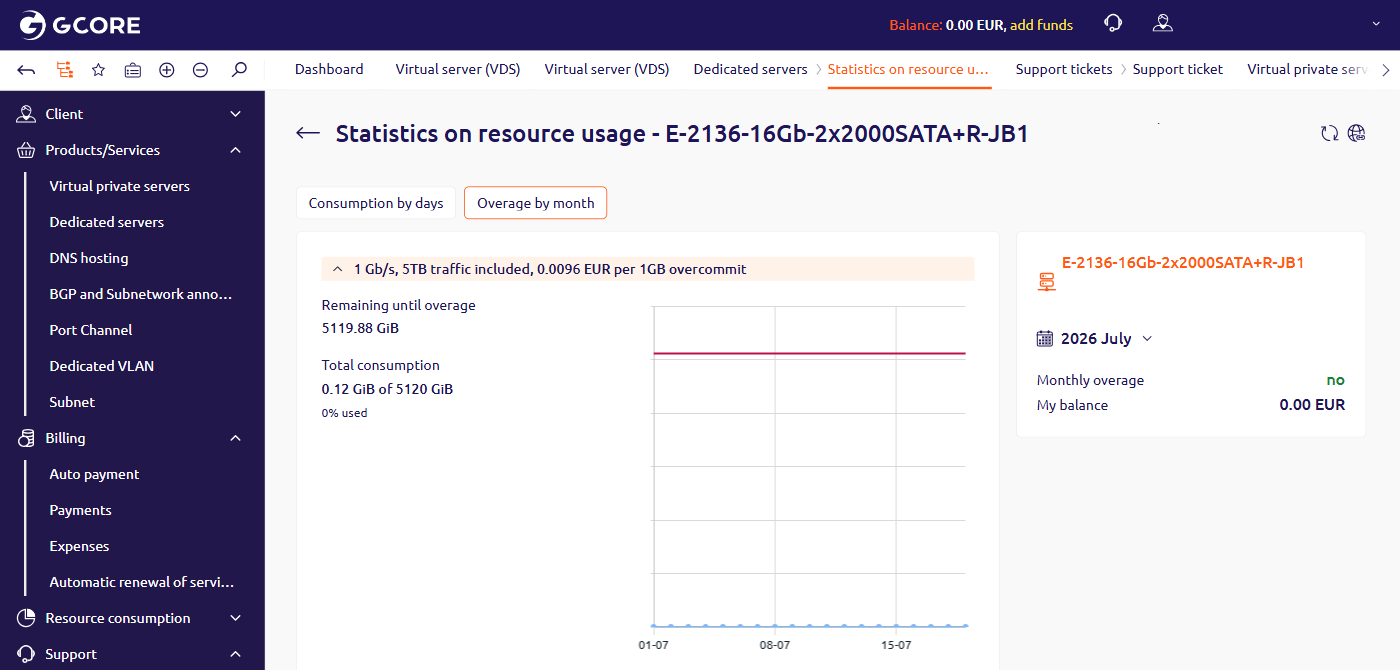
The **Overage by month** tab shows total data consumption against the monthly included quota, along with remaining bandwidth and any overage charges for the selected month.
To view the overage report, click **Overage by month** at the top of the **Service usage statistics** page.
## Overage by month
The **Overage by month** tab shows total data consumption against the monthly included quota, along with remaining bandwidth and any overage charges for the selected month.
To view the overage report, click **Overage by month** at the top of the **Service usage statistics** page.